Support
 Need help? Find it here.
-
[Image editor] I want to edit pictures which is embedded in e-book cover or body.
The Picture Editor of Namo Author provides you can do extra if you do professional picture editing without extra picture editing tools.
[Image editor], you can make various picture editing, rotating, cropping, resizing, and image effects, such as text input, drawing shapes.
[Picture rotation, Resizing]

- Trim, Crop front, Crop: You can crop the picture or cut.
- Resize: You can adjust the width and height of the picture.
- Rotate, Flip: You can flip or rotate the picture to the left and right or up and down.
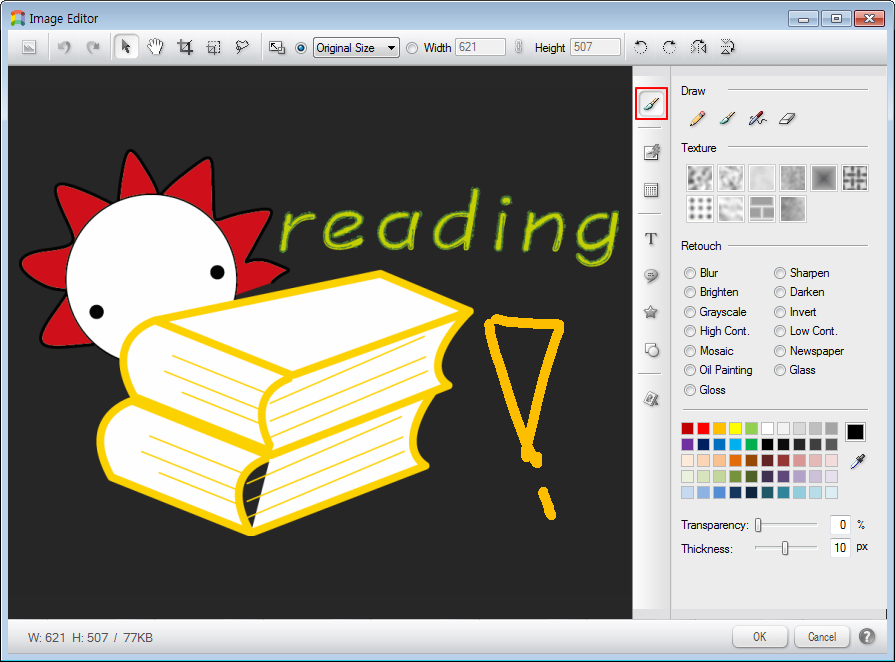
[Pictures on a free-form line drawing]
- Select the [Retouch] button
 on the right button.
 - Select the desired drawing tool on the Drawing.
- Select the texture you want from the texture of lines.
- Select the desired effect in (retouching).
- Select transparency Line Color and specify the thickness.
- Drag on the picture above after clicking to draw the line.
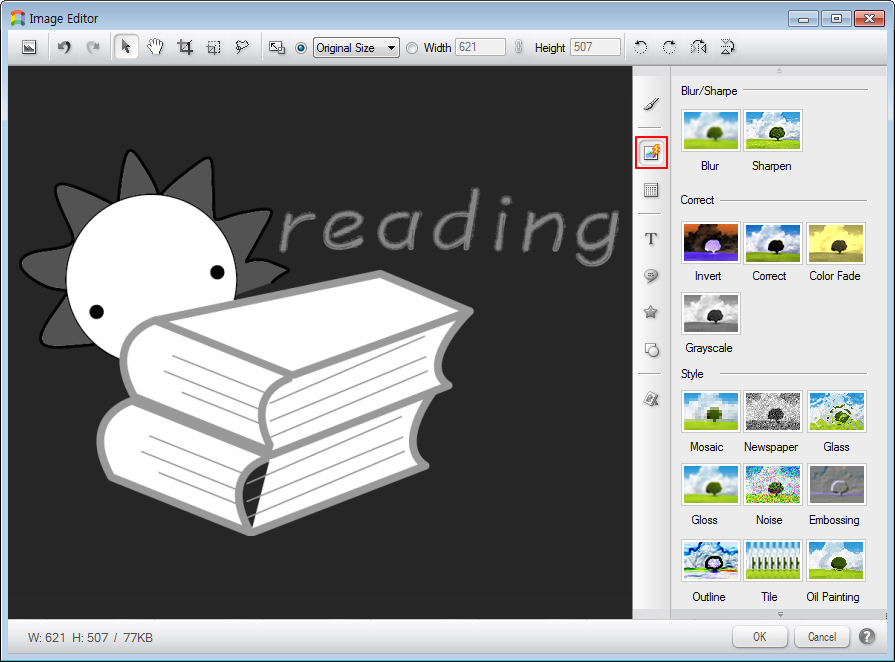
[Apply image effects]
- Select [Image Effects] button
 from the Right button.
 - Select the Blur / Sharpen effect, ''Color Correction', 'style', 'distorted, etc. in the image effect, you want.
[Add your letters above a picture]
- Select the Text button on the right button.
- Assign the font type, font size and specify the text formatting.
- Assign specify the transparency color by selecting the text and slide bar.
- Enter the desired text in the text box and press the Insert button, the character is added on top of the image.

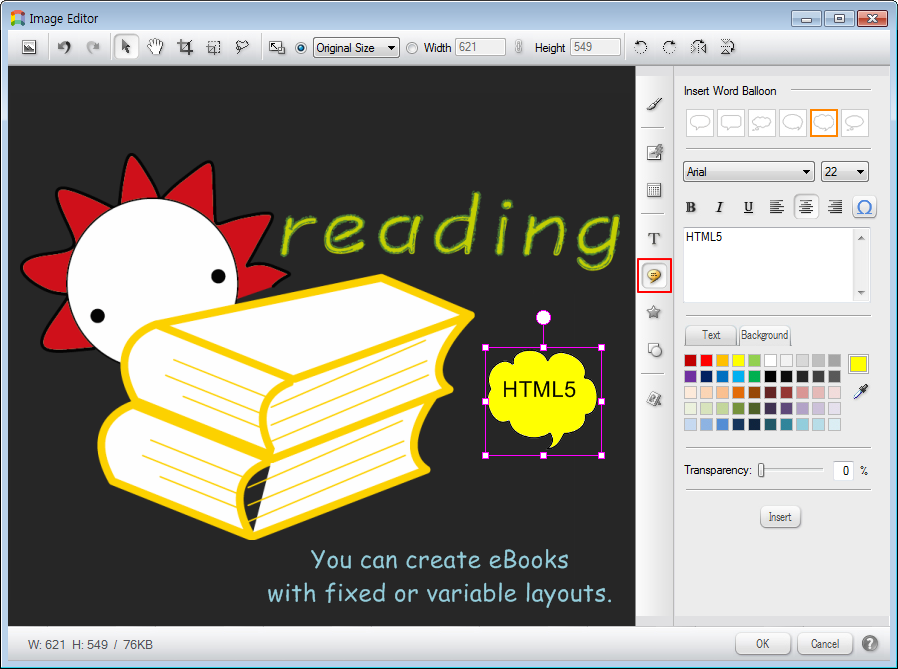
[Add balloon-shaped letters]
- Choose balloon button
 on the right button.
 - Select the type of balloon.
- Assign the font type and font size and specify the text formatting.
- Assign specify the transparency by specifying the color and background color of the text balloon in the slide bar.
- Enter the desired text in the text box and press the Insert button to add the text of the speech balloon shapes on the image.
[Load another picture over picture]
- Choose Insert Picture button
 on the right button.
 - Select the picture you want to add, click the Load Pictures butto